Please see screenshots on how to create/add new Outgoing Order in WHS
Click Add an Order under “Goods Out”
Fill in all the information required to create the order
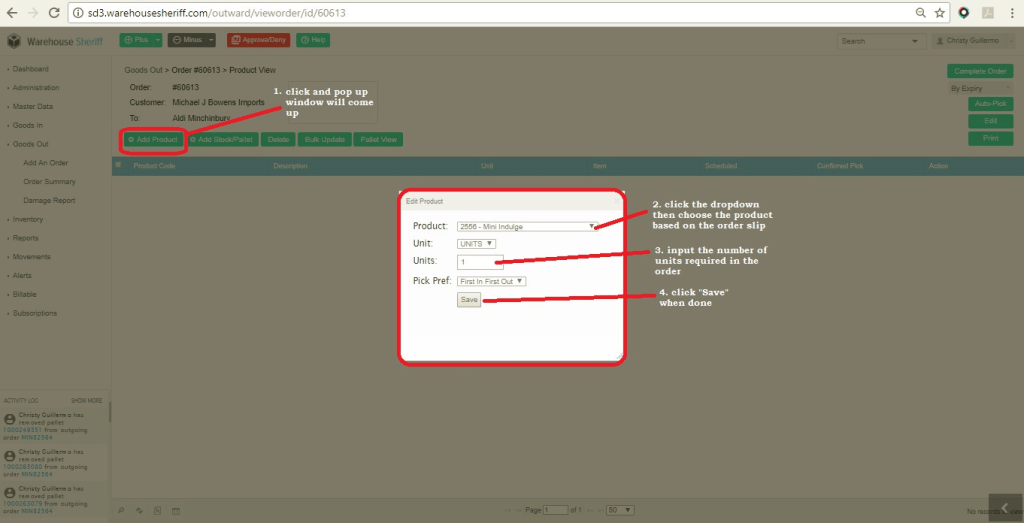
- When redirected back to Order Home. Add the products required in the order, follow instructions below. Repeat to add more products
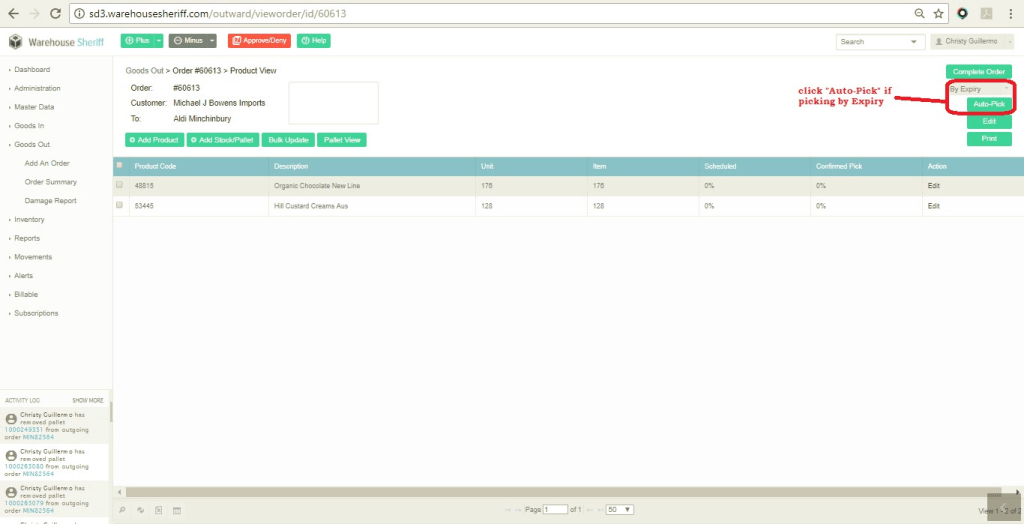
- Orders can be pick either using the “Auto-Pick” function or by manual Picking.
- If order is to be pick based on oldest expiry date, click Auto-Pick and the system will automatically pick the stock
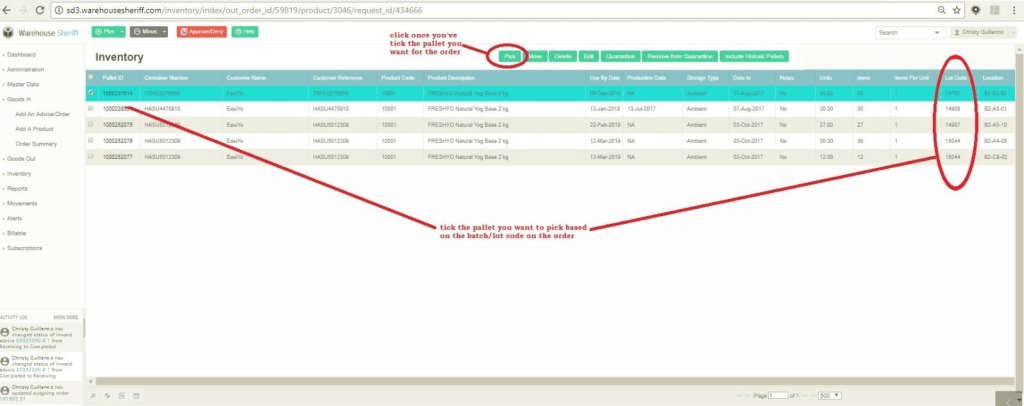
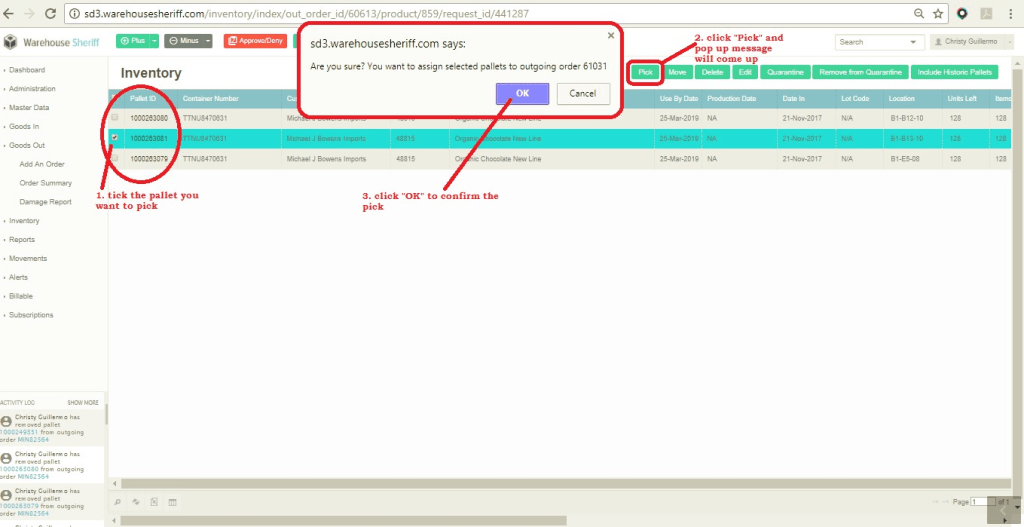
- If order is to be pick by “Manual Picking”, this is due to 2 reasons. Stocks need to be pick by Lot/Batch Code or order requires for a specific pallet ID. The first 2 steps are the same, the 3rd step will be different as we are picking for 2 different reason.
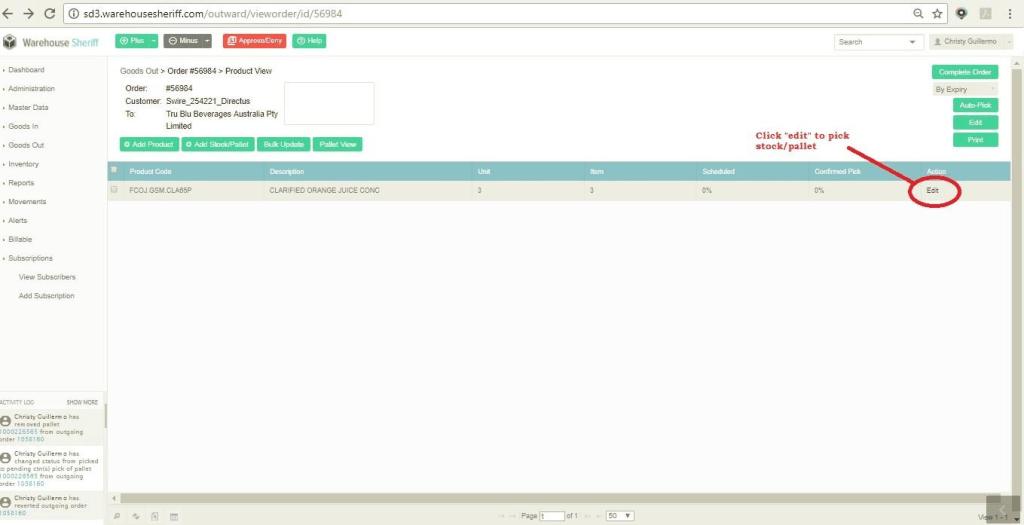
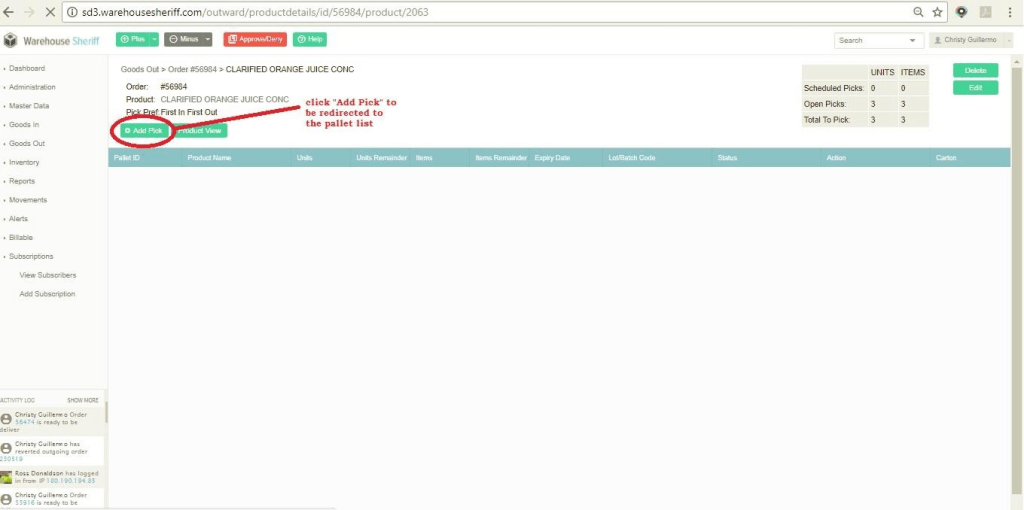
Picking by Lot/Batch Code
Picking by specific pallet ID
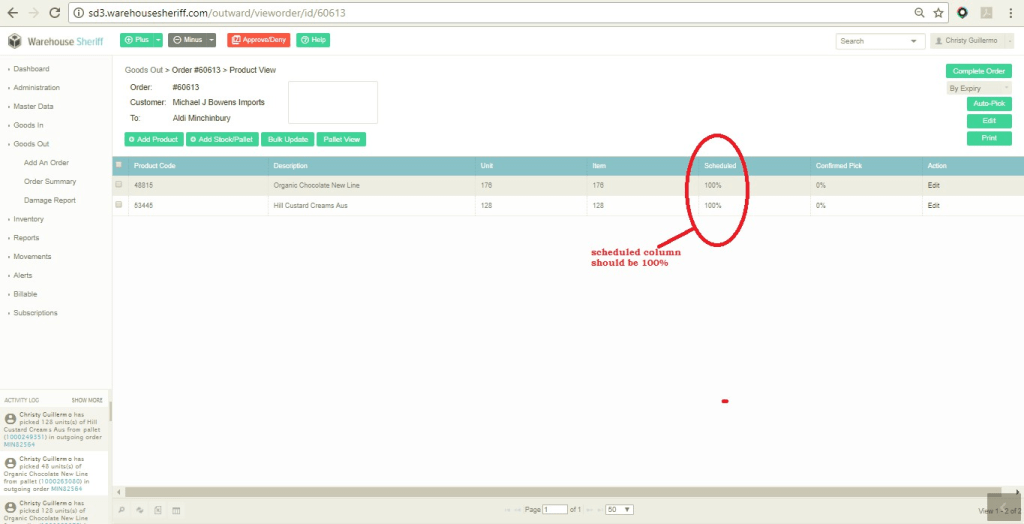
- Make sure that the scheduled column is 100% which means there are enough stock to pick for the order.
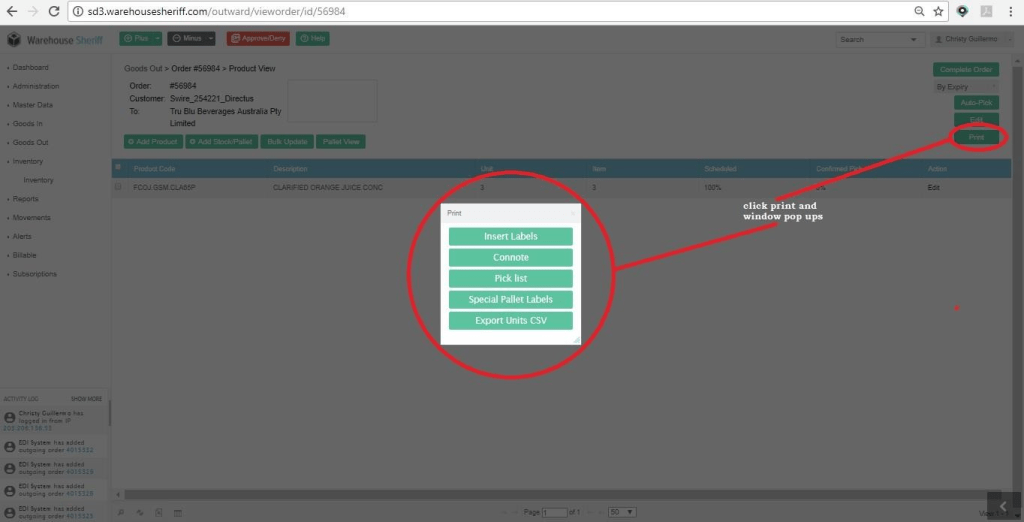
- Click “Print” to print the paperwork. Click the corresponding paperwork required for the order